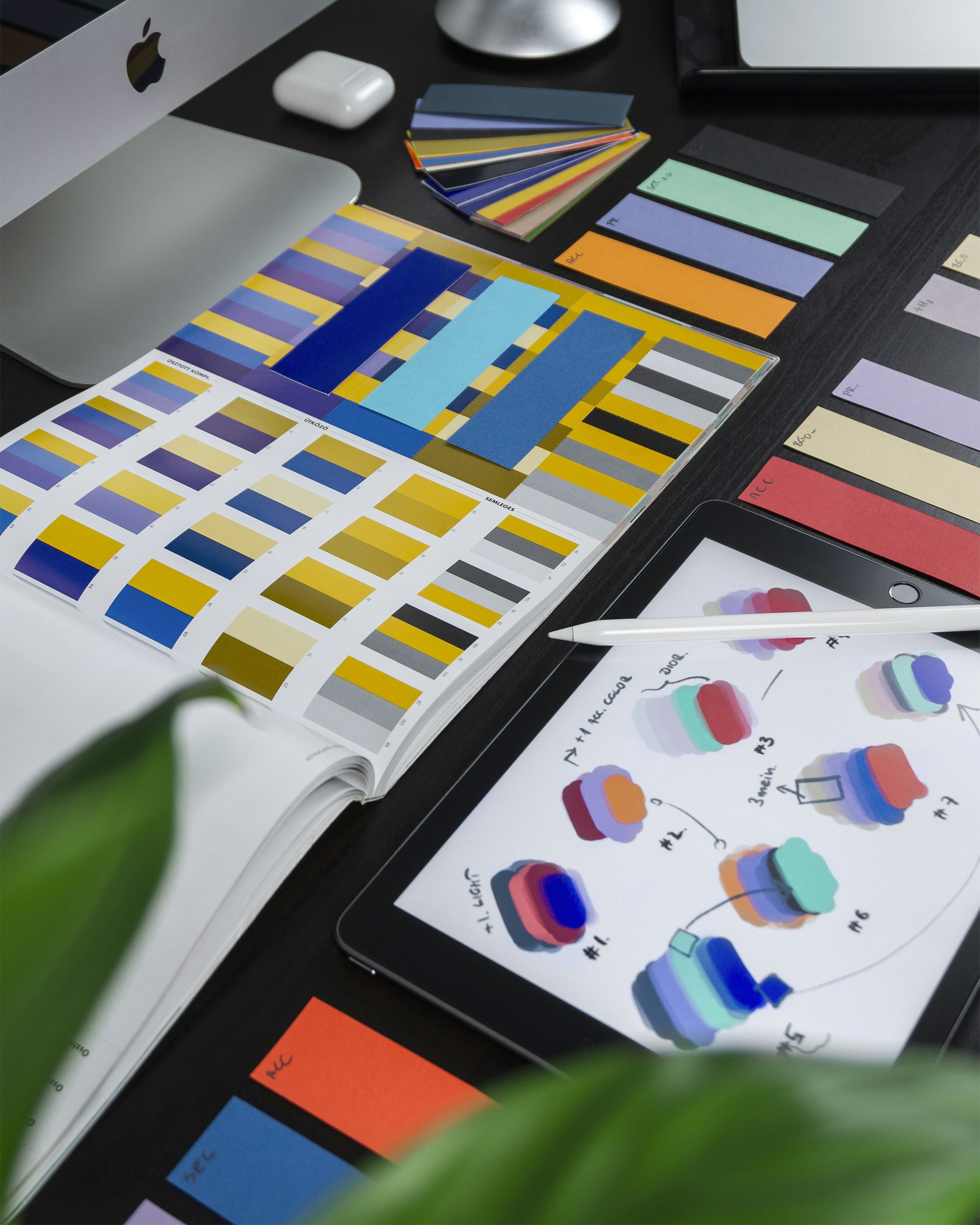
TLDR: A mood board settles the look and feel before anyone builds the real thing, and AI is genuinely good at making one. Describe the vibe like a brief (audience, three feel words, a reference or two), then ask for a single self-contained HTML page with a color palette, type specimens, imagery direction, and a few keywords. Make the swatches copy their hex code on click, then publish the page as a live link so the client can review it and the developer can pull exact values. Below is the prompt structure, section by section.
A mood board is the cheapest place to catch a mistake. Redoing a color palette and a font pairing takes ten minutes. Redoing a finished website after the client says “this feels too corporate, we wanted something warmer” takes a week. The whole point of a mood board is to have that argument early, on purpose, when nothing is built yet.
For a long time making one meant collecting screenshots into a Pinterest board or fighting with a design tool. You can build a mood board with AI now, and the result is better than either, because it comes out as a real web page: a palette with copyable hex codes, fonts shown at real sizes, imagery direction, and the keywords that tie it together. This walks through how to prompt for one that a client can actually use.
What actually goes on a mood board
Before the prompts, get clear on what you are asking for. A good mood board is not a wall of pretty pictures. It is a small set of decisions, shown clearly. Five things carry almost all of the weight.
A color palette, as hex codes. A primary, a secondary or two, a background, a text color, and one accent. Insist on hex. “Warm neutral” is a mood; #E7DFD3 is a decision a developer can act on. If you want to go deeper on choosing colors, our guide to color palettes for AI pages pairs well with this.
A type pairing, shown in real specimens. A heading font and a body font, displayed at actual sizes with a sample headline and a paragraph, not just named in a list. Seeing the fonts is the whole point.
Imagery direction. The style of photography or illustration you want, described and, ideally, shown. Bright and airy versus moody and cinematic is a real decision that changes everything downstream.
Feel words. Three to five adjectives that name the tone: “confident, warm, editorial” or “playful, energetic, bold.” These are the anchor. If you only get one thing right in the prompt, get these. Our feel-words vocabulary for art-directing AI is a good place to steal from.
One or two layout references. A screenshot or a link to a page whose structure or energy you admire. This is the single most powerful input you can give, and prompting with reference images covers how to use one well.
How do you prompt AI to build a mood board?
The mistake is asking for “a mood board” and nothing else. You get a vague page or a list of suggestions. Describe it the way you would brief a designer: who it is for, how it should feel, and what sections you want. Here is a complete starter prompt you can paste and edit.
Build me a mood board as a single, self-contained HTML file (all CSS
and JavaScript inline, no external dependencies except Google Fonts).

Project: a brand direction for a specialty coffee subscription aimed at
people in their late 20s and 30s who care about where their coffee
comes from.

Feel words: warm, honest, editorial, a little bit craft. NOT corporate,
NOT loud, NOT techy.

Include these sections, each clearly labeled, on one scrollable page:
1. A short intro line stating the direction in one sentence.
2. A color palette: 5 to 6 swatches, each showing the color, a name,
   and its hex code.
3. Typography: a display/heading font paired with a readable body font,
   shown with a real sample headline and a paragraph of body text.
4. Imagery direction: 3 to 4 placeholder image tiles with captions
   describing the photo style I should shoot or source.
5. Keywords: the feel words shown as tags.

Design the page itself in the direction it describes, so the mood board
looks like the brand it is proposing. Generous spacing, clean type
hierarchy, mobile-friendly. Give me the full HTML.
Two things make this work. You named the audience and the feeling instead of just the topic, and you listed the exact sections so the AI builds a structured page instead of an essay. The last instruction, “design the page in the direction it describes,” is the sleeper. It turns the mood board into a live example of itself.
If the model hands you loose text or a partial file, add one line: “Return the complete, self-contained HTML in a single file with everything inlined.” That request is the difference between a page and a pile of notes, and getting self-contained HTML from AI goes deeper on why.
Prompts for each section
Once you have a first draft, you refine one section at a time. This is faster and more controllable than regenerating the whole board. Keep the conversation going and give targeted instructions.
For the color palette:
Rework the palette. Keep it warm but pull one color toward a deep
terracotta as the accent. Add a very dark brown for text instead of
pure black. Show each swatch with its hex code and a one-word usage
label (background, text, primary, accent).
For the type:
The heading font feels too formal. Try a warmer serif with a bit of
character for headings, keep a clean neutral sans for body. Show both
at the sizes they would actually be used, H1 down to small caption
text, so I can judge the hierarchy.
For imagery:
For the imagery tiles, write captions that describe the exact photo
style: natural light, shallow depth of field, hands and process over
polished product shots, muted warm grading. Make the tiles a
responsive grid.
Working in small, specific passes is the core skill. Our guide on briefing AI like a designer and the piece on follow-up prompts that polish a page both go further on giving feedback that actually improves a draft.
Make the swatches do something
A static mood board is a picture. A mood board on a real web page can be a tool, and that is the reason to build it this way instead of exporting a flat image. The highest-value interaction is making every color swatch copy its own hex code when someone clicks it.
Make each color swatch a button. On click, copy that swatch's hex code
to the clipboard and briefly show a "Copied" label on the swatch. Use
addEventListener, not inline onclick. Keep it keyboard-accessible.
Now the developer building the site does not squint at a screenshot and retype #E7DFD3. They click, they paste, they move on. You can extend the same idea: click an image tile to open it larger, or add a small toggle that previews the palette on a light and a dark background. Making an AI page interactive covers the pattern, and a photo gallery build is a good companion if imagery is the heart of your board.
Mood board formats compared
Here is why a live page beats the usual options, at a glance.
| Format | Interactive swatches | Responsive on a phone | Updates in place | No login or download |
|---|---|---|---|---|
| Flat image (PNG/JPG) | No | Zooms, does not reflow | No, you re-export | Yes, but static |
| PDF export | No | Awkward | No, “v3_final.pdf” | Download required |
| Pinterest board | No | Yes | Yes, but it is a scrapbook | Login/app nudge |
| Slide deck | No | Poor | Sometimes | Often a download |
| Live web page | Yes | Yes | Yes, same link | Yes |
The flat image and the PDF lose everything that makes a mood board on a web page useful. The Pinterest board keeps some interactivity but reads as a pile of other people’s images rather than your specific, organized direction. The live page is the only option where the swatches stay clickable, the layout adapts to a phone, and a revision does not spawn a new file.
Iterate until the feel is right, then share it
A mood board is a conversation. You will show a draft, get a reaction, and adjust. Because it is a real page, you can steer it with plain language: “make the whole thing feel calmer and more premium,” “this reads too playful, dial it back,” “swap the accent for something less orange.” If you want a structured approach to that loop, how to iterate on AI-generated pages lays it out.
When it is close, the last step is getting it in front of whoever needs to sign off, and this is where the “real web page” decision pays off. You built an interactive page, so share it as one. Paste the HTML into VisiblePage and you get a live link in seconds, with the clickable swatches, responsive layout, and every interaction intact, because you are sharing the actual page, not a screenshot of it. If the AI split your board into multiple files, drop the whole ZIP and it publishes the same way.
A live link fits how mood boards actually get reviewed. The client opens it on their phone with no download and no login. You can password-protect it so it stays between you and them. And when the client asks for “warmer, less blue,” you revise the page and update it without changing the link, so the URL you already sent always shows the current direction. No “moodboard_final_v3.pdf” making the rounds. One canonical link, always current. If the mood board is one piece of a bigger pitch, it slots neatly next to a client proposal built the same way.
Try it now: Publish your AI-generated mood board with VisiblePage and get a live link in seconds.
Frequently asked questions
Can AI actually build a mood board? Yes. AI is very good at turning a described vibe into an organized mood board page: a color palette with hex codes, type pairings shown in real specimens, imagery direction, and a few keywords that set the tone. Ask for one self-contained HTML file and you get a real page you can publish, not a flat image you still have to assemble.
What should go on a mood board? Five things carry most of the weight: a color palette with hex codes, a type pairing shown at real sizes, imagery direction, a handful of feel words that name the tone, and one or two layout references. Keep it tight. A mood board is a direction, not a catalog.
How do I make the swatches clickable so people can copy the hex codes? Ask the AI for it directly: make each color swatch a button that copies its hex code to the clipboard on click and shows a quick confirmation. It is a few lines of JavaScript and it turns a static picture into a tool a designer or developer can actually use.
Can I share a mood board as a link instead of a PDF or a Pinterest board? Yes, and it is the better option. A live page keeps the swatches clickable and the layout responsive, updates in place when you revise it, and does not force the client into a login or a download. Publish the HTML as a link and send that.
How is an AI mood board different from a Pinterest board? A Pinterest board is a pile of other people’s images. An AI mood board is a single organized page built around your specific direction: your palette, your type, your keywords, and your chosen references, laid out the way a designer would present it. It reads as a deliverable, not a scrapbook.